Overview
The Auto Clock-out feature helps managers keep employee timesheets correct and complete.
Sometime, employees forget to clock out after work, causing wrong working hours and extra corrections before payroll.
With Auto Clock-out, TimeMoto clocks out employees automatically based on their Fixed Time Schedule.
This helps saving time and keeping timesheets accurate.
How it works
When a manager enables Auto Clock-out for a Fixed Time Schedule, TimeMoto checks each employee’s end time.
If the employee is still clocked in after the end of the schedule and after a short delay (set by the manager), TimeMoto:
Clocks the employee out automatically at the scheduled end time.
Sends a notification to the manager.
Shows the automatic clock-out in the Timesheet Report.
Example:
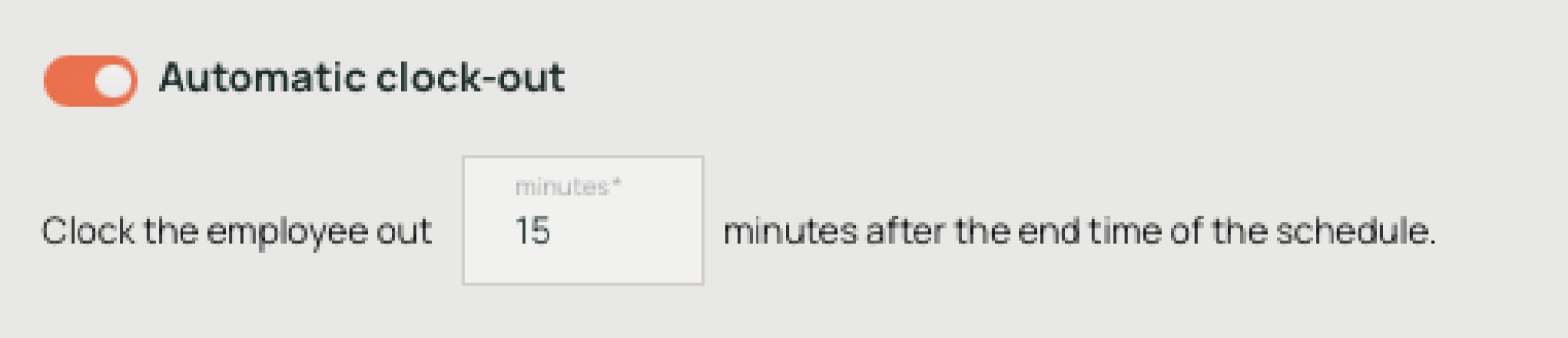
A schedule ends at 17:00. The Auto Clock-out delay is 15 minutes.
If the employee has not clocked out by 17:15, TimeMoto clocks them out automatically at 17:00.
Who can use it
Only managers can set up Auto Clock-out.
It works only with Fixed Time Schedules.
How to set up Auto Clock-out
Go to Planning/Schedules in TimeMoto Cloud.

Create or edit a Fixed Time Schedule.
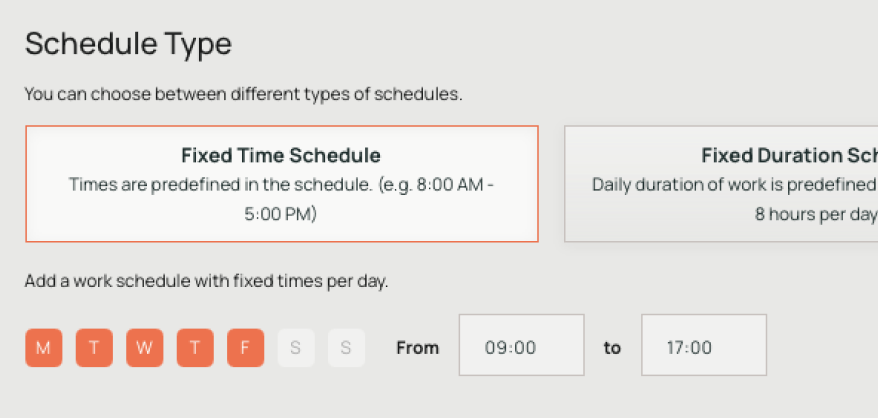
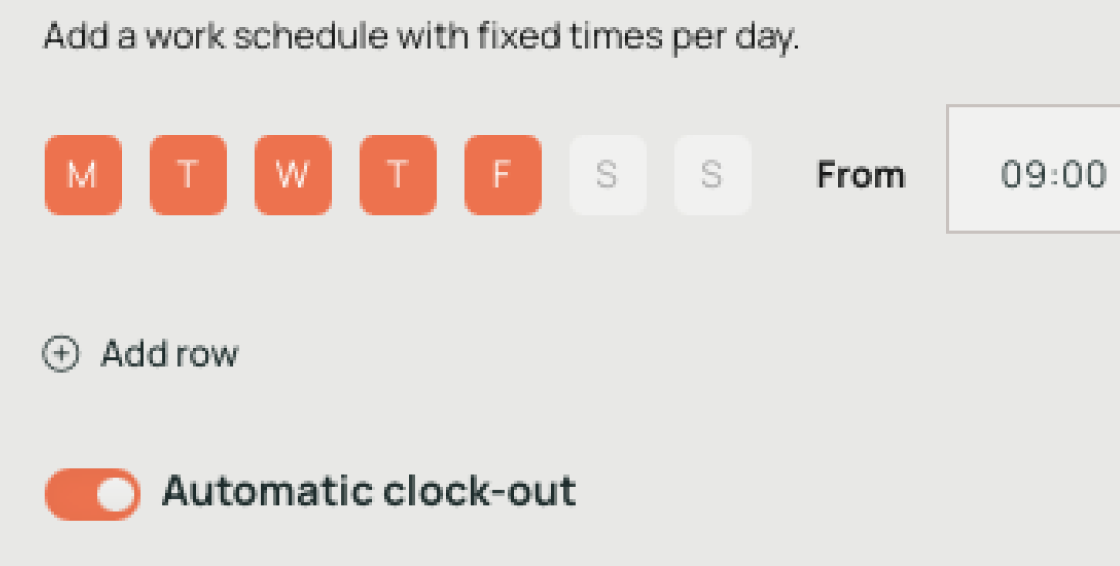
Turn on Auto Clock-out.
Set the delay time in minutes.
Click Save.
Notifications and visibility
Managers get a notification when an employee is clocked out automatically.
The automatic clock-out appears in the employee’s Timesheet Report.
Important notes
Auto Clock-out does not work with Flexible or Fixed Duration Schedules.
Managers can still edit time entries after automatic clock-out.
The feature applies only to scheduled workdays.
FAQ
Q: What happens if the employee clocks out before the delay time?
A: Then TimeMoto does nothing. The manual clock-out stays.
Q: Can employees see their automatic clock-out?
A: Yes. It appears in their timesheet like any other clock-out.
Q: Can managers change the delay later?
A: Yes. Managers can edit the Fixed Time Schedule and update the delay time.
Comments
0 comments
Please sign in to leave a comment.