With the latest improvements, we changed the behaviour of our Timesheet when it comes to changing Clocking Actions. For a quick adjustment, you can still change clocking actions by clicking on the timestamps in the daily entries. For more advanced adjustments, you can click on the date of the daily entries and access the Advanced Timestamp Settings.
Simple Timestamp Changes
For simple Timestamp changes, you can change the time under the column or add new clocking actions by clicking on the plus symbol. All timestamp changes have static dates, meaning they don't change with adding or amending clocking actions. New clocking actions will always take the date of the daily entry. Existing clocking actions will always keep their date (even if it is a night shift). This setting is best for minor changes.
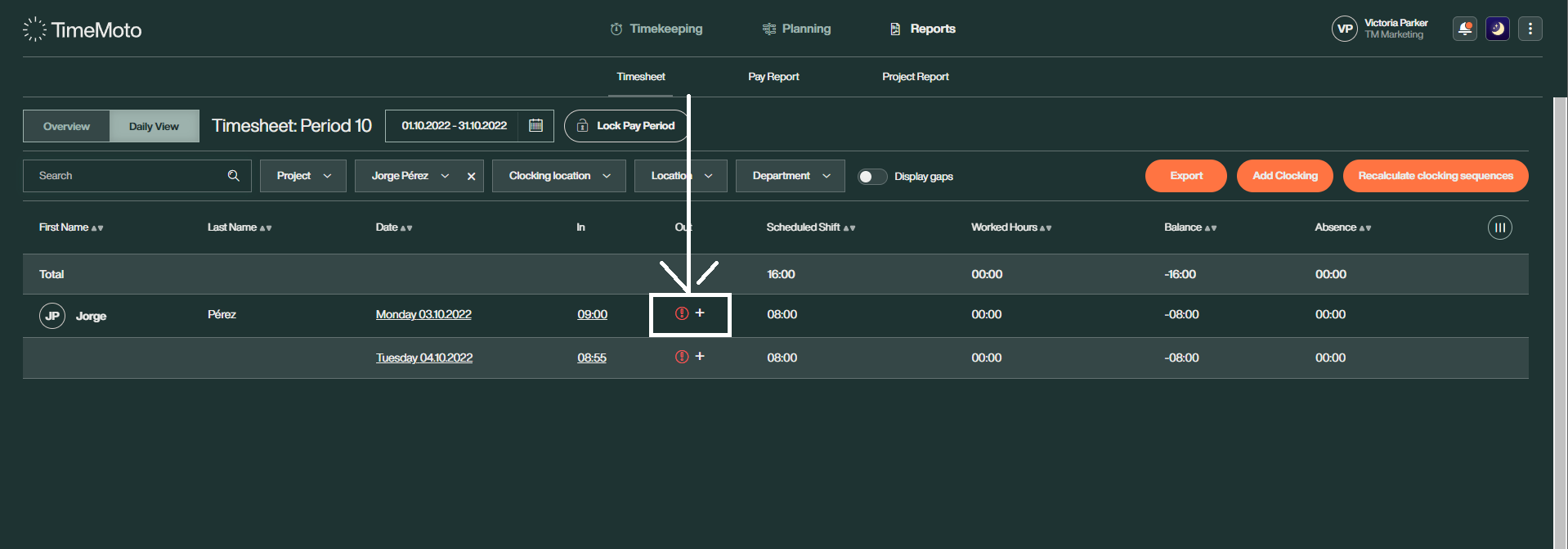
Example #1 – Regular Day Shift
The manager adds a "Clock out" at 17:00.
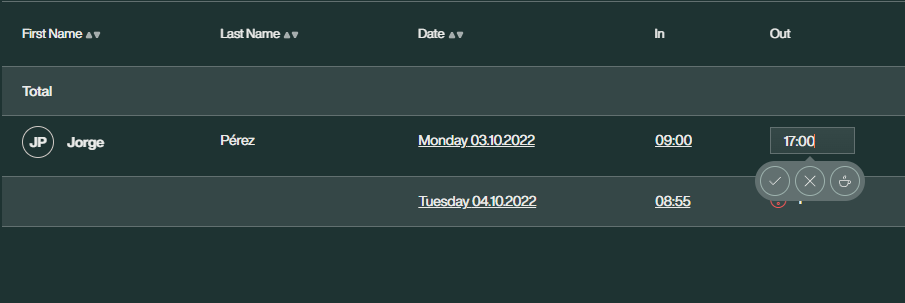
Once the manager saves the entry, the system adds the clock out on 03.10.2022 and counts the sequence as a regular day shift.
Example #2 – Night Shift
The manager adds a "Clock out" at 01:00.
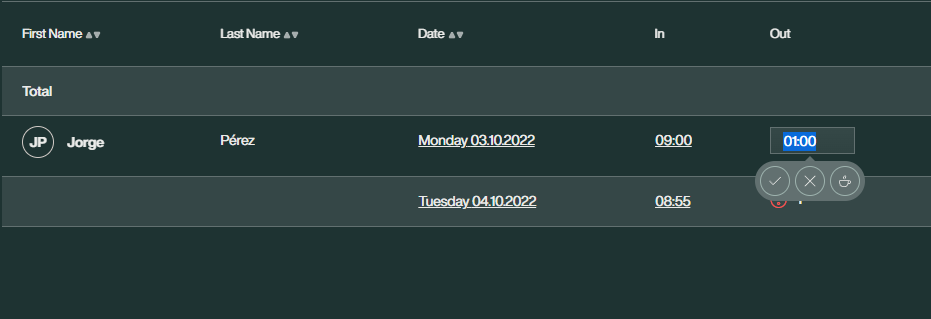
Once the manager attempts to save the entry, the system will deny the changes since they would add a subsequent clock out at an earlier time than the previous clock in.
If they mean to add a night shift to the Timesheet, they need to use the advanced Timestamp Settings.
Advanced Timestamp Settings
The advanced settings function a bit more progressively. Any changes made here will always consider timestamps in chronological order. This means if a subsequent timestamp has an earlier time than the timestamp before, TimeMoto will set the date to the following day (including all the following timestamps). This setting is best for more complex changes and night shifts where different dates are essential.
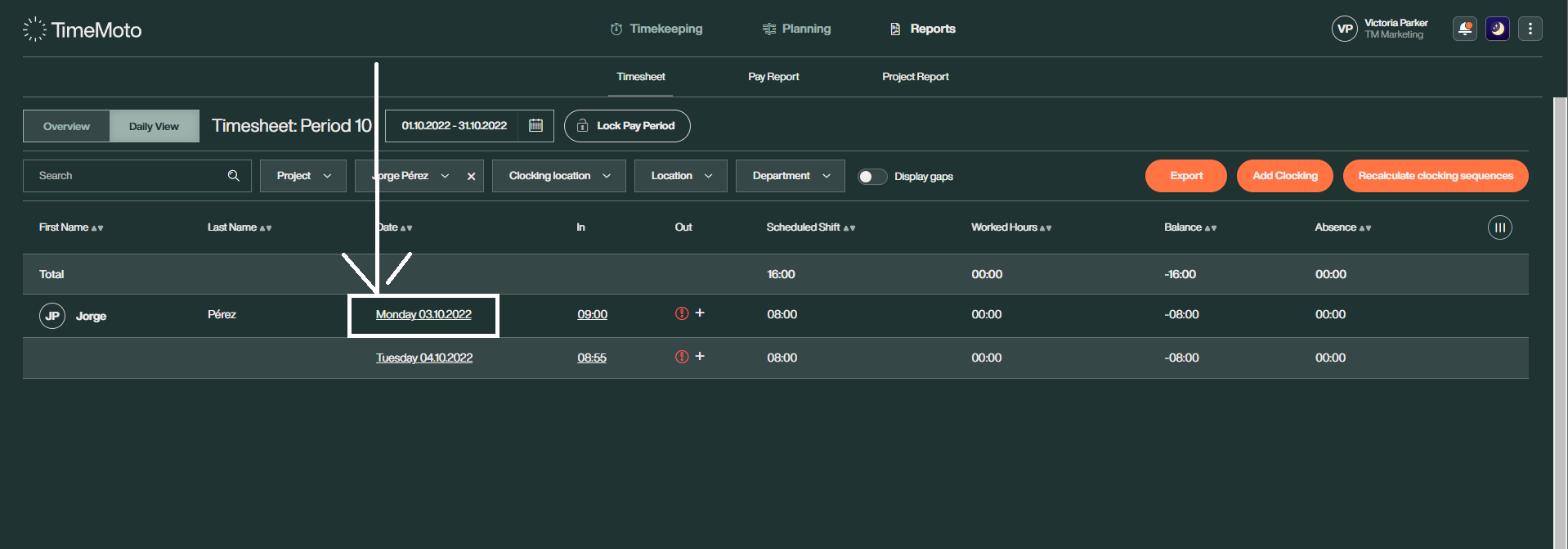
Example #3 – Regular Night Shift
The manager adds a "Clock out" at 01:00.
Once the manager attempts to insert the entry, the system will automatically assume the Clock out must be set on the following date (04.10.2022) and counts the sequence as a night shift.
Any questions?
Looking for answers but not sure where to start? Check out our Glossary! It's a great resource to help you find the information you need. If you need further assistance, please contact us via the Contact Form.
Comments
0 comments
Please sign in to leave a comment.